Get What in the veg on your phone
It opens full-screen, right from your home screen, like an app. No app store, no download, no account.
Your browser can install it directly.
On iPhone or iPad
Use Safari — it is the only iOS browser that can install a web app to the home screen. It takes three taps.
-
1
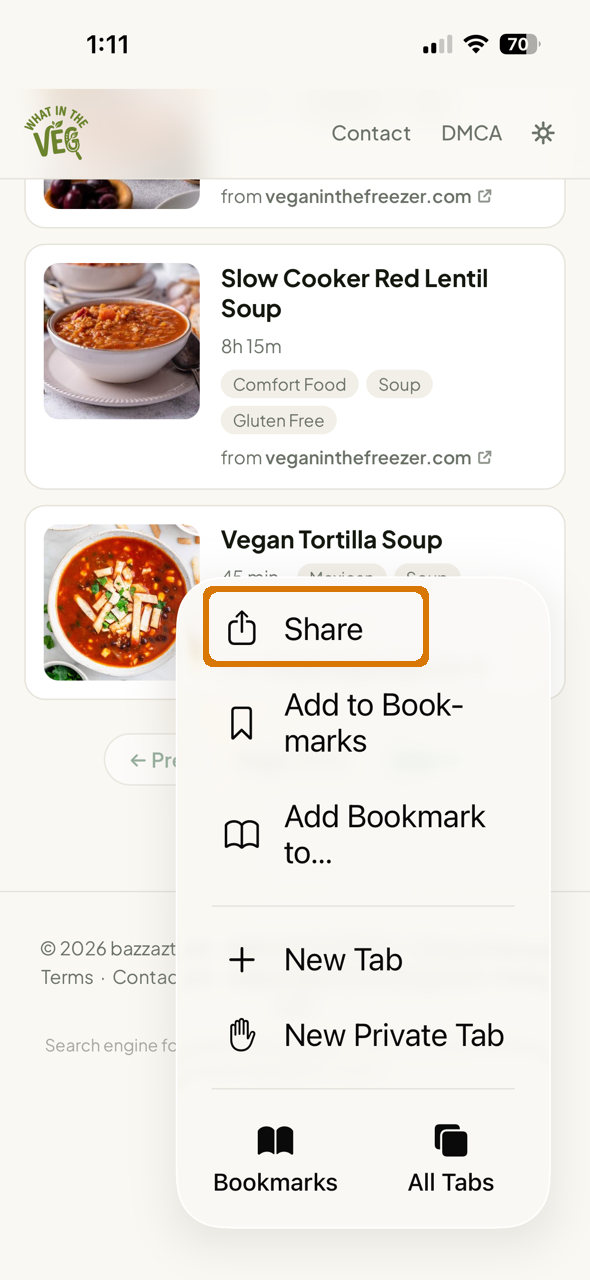
Tap Share
Open the toolbar menu and tap Share.
 Screenshot coming soon
Tap Share. -
2
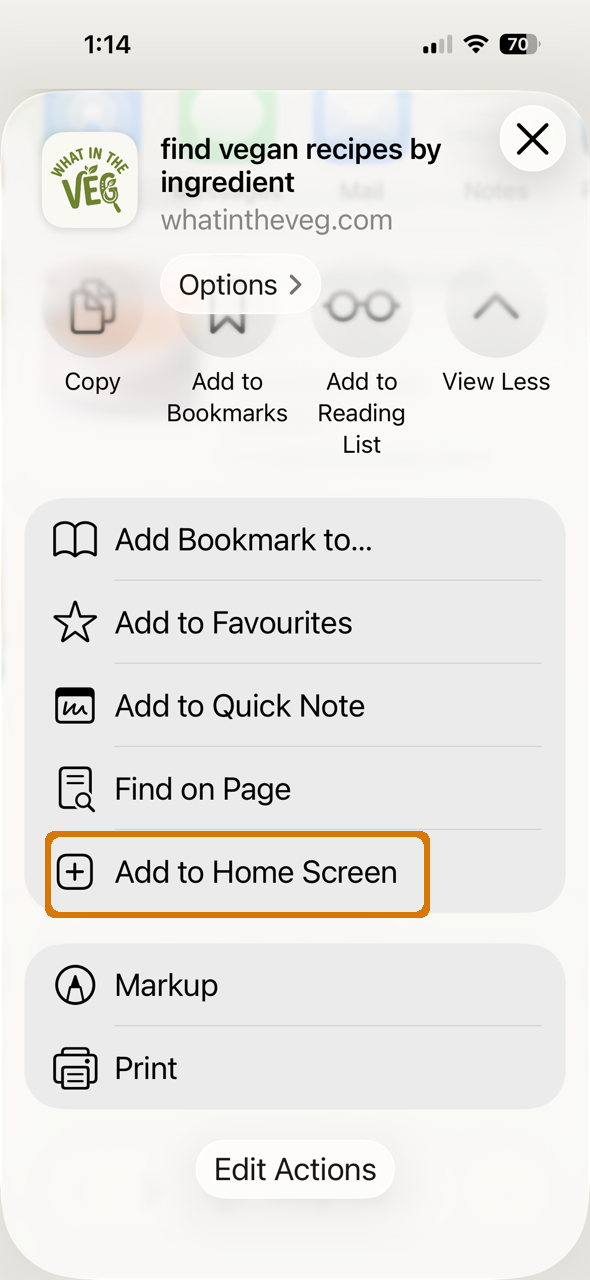
Add to Home Screen
In the share sheet, scroll down and tap Add to Home Screen.
 Screenshot coming soon
Add to Home Screen. -
3
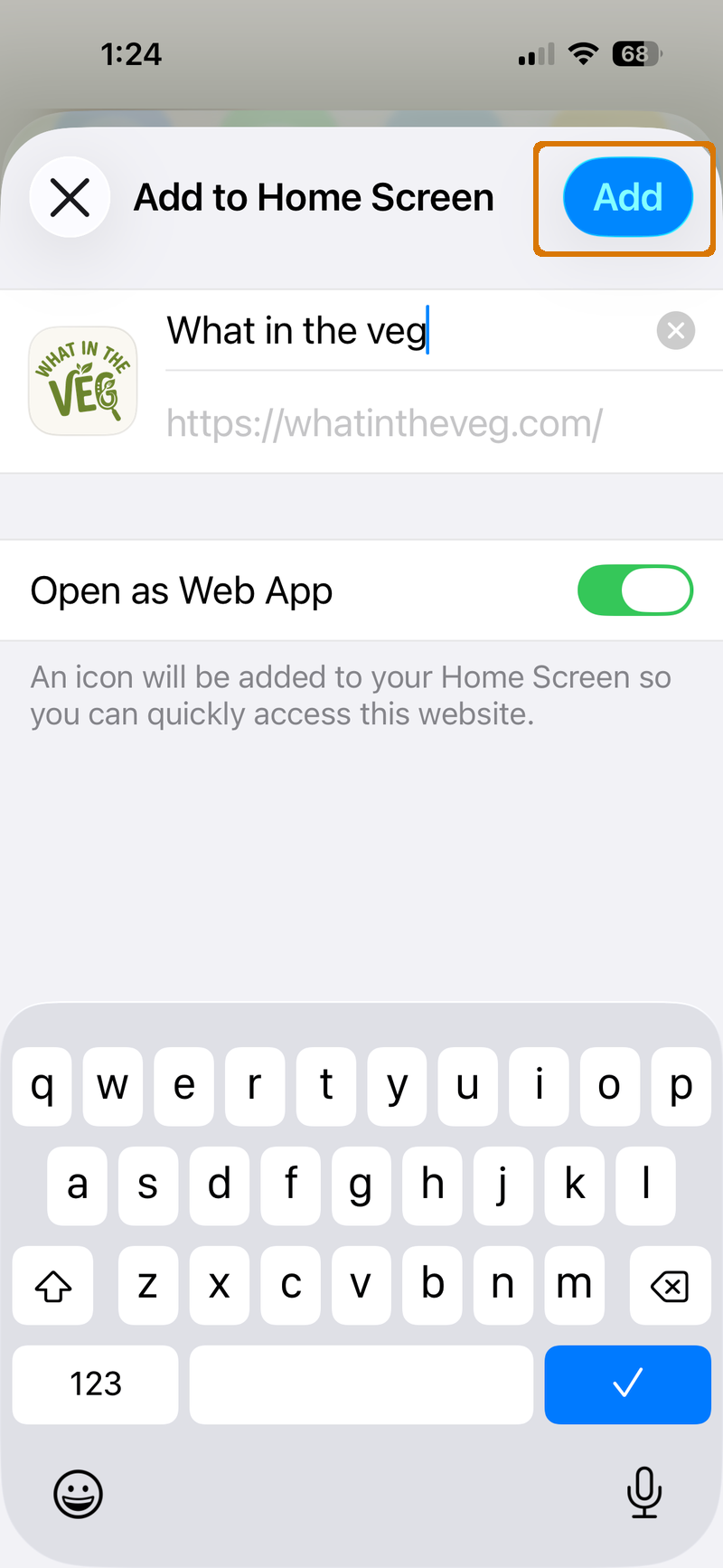
Tap Add
Confirm the name and tap Add. The icon appears on your home screen.
 Screenshot coming soon
Tap Add.
On Android
What you see depends on your browser. Chrome, Edge and Samsung Internet install it as a proper app; Firefox and DuckDuckGo add it as a home-screen shortcut. Either way it lands on your home screen.
Chrome, Edge or Samsung Internet Best
-
1
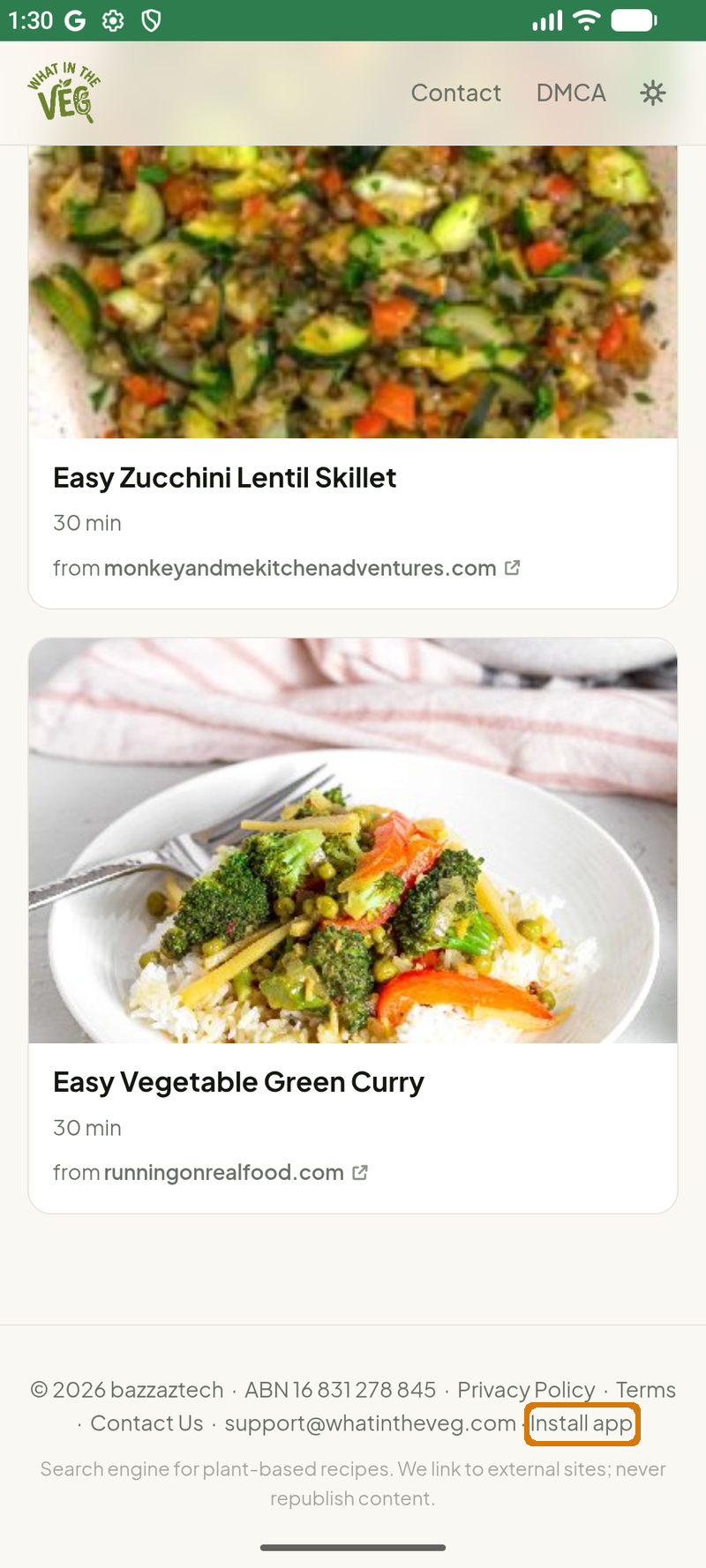
Tap Install app
Scroll to the bottom of any page and tap Install app. No such link? Use the browser menu: ⋮ → Install app or Add to Home screen.
 Screenshot coming soon
The Install app link. -
2
Tap Install
Confirm in the dialog. It installs as an app, not a bookmark.
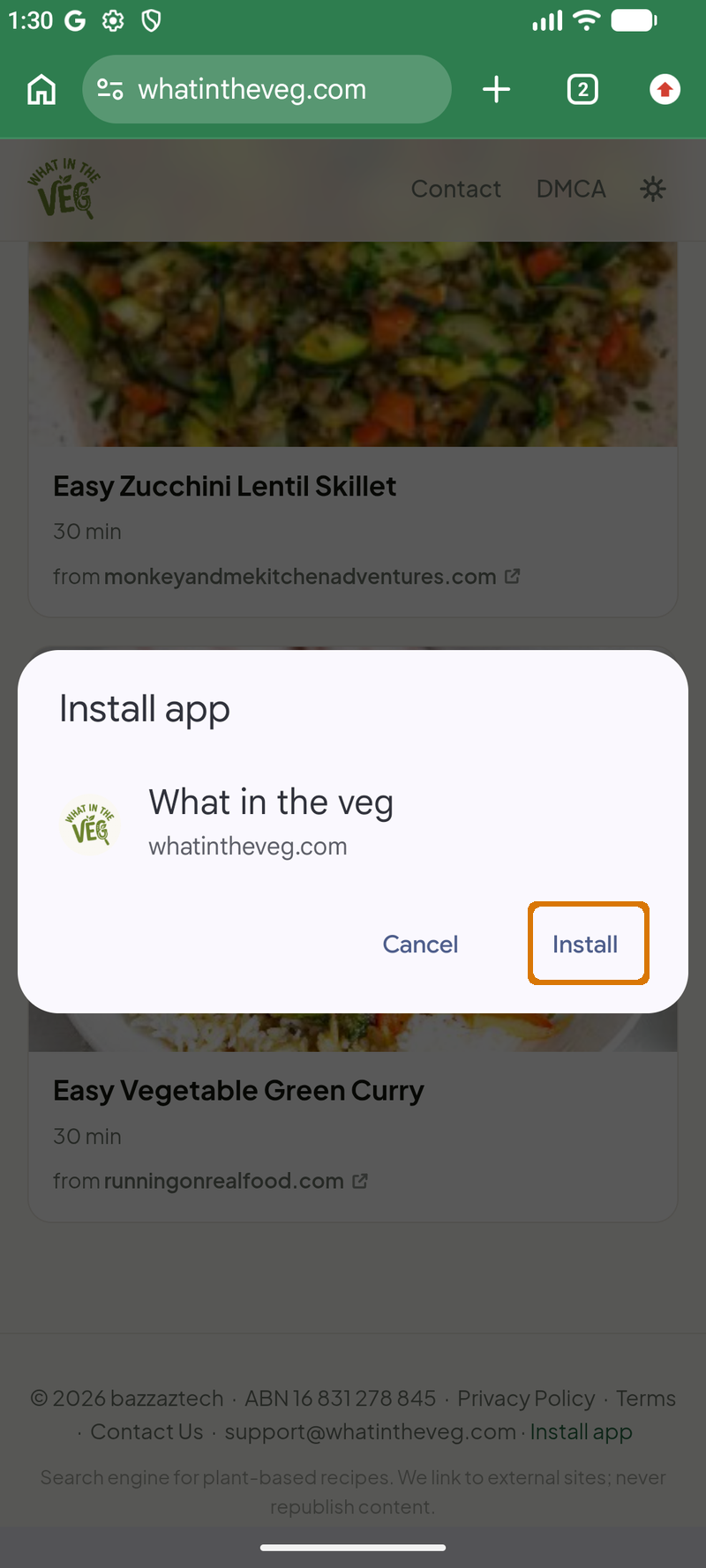 Screenshot coming soon
Tap Install.
Firefox
-
1
Menu → Install
Tap the three-dot menu (⋮) next to the address bar, then tap Install (or Add app to Home screen).
DuckDuckGo
-
1
Add to Home screen
Tap the menu (⋮), then Add to Home screen. It creates a shortcut that opens in DuckDuckGo.
On a computer
The quickest route from a computer is to scan the code below and install on your phone. You can also install it as a desktop app from Chrome or Edge.

Open on your phone
Point your phone camera at the code. It opens this page on your phone, where the steps above apply.
Chrome or Edge on desktop
-
1
Install from the address bar
Look for the install icon (a monitor with a down arrow) at the right of the address bar, or open the browser menu and choose Install What in the veg.
-
2
Confirm
Click Install. It opens in its own window and gets a shortcut like any other app.
What in the veg is a website, not a store app. Installing just adds a home-screen icon that opens it full-screen, and uses the same site behind the scenes, so it stays up to date. You can remove it any time like any other app.